
Anker Laptop Docking Station Dual Monitor
4.5Editor score
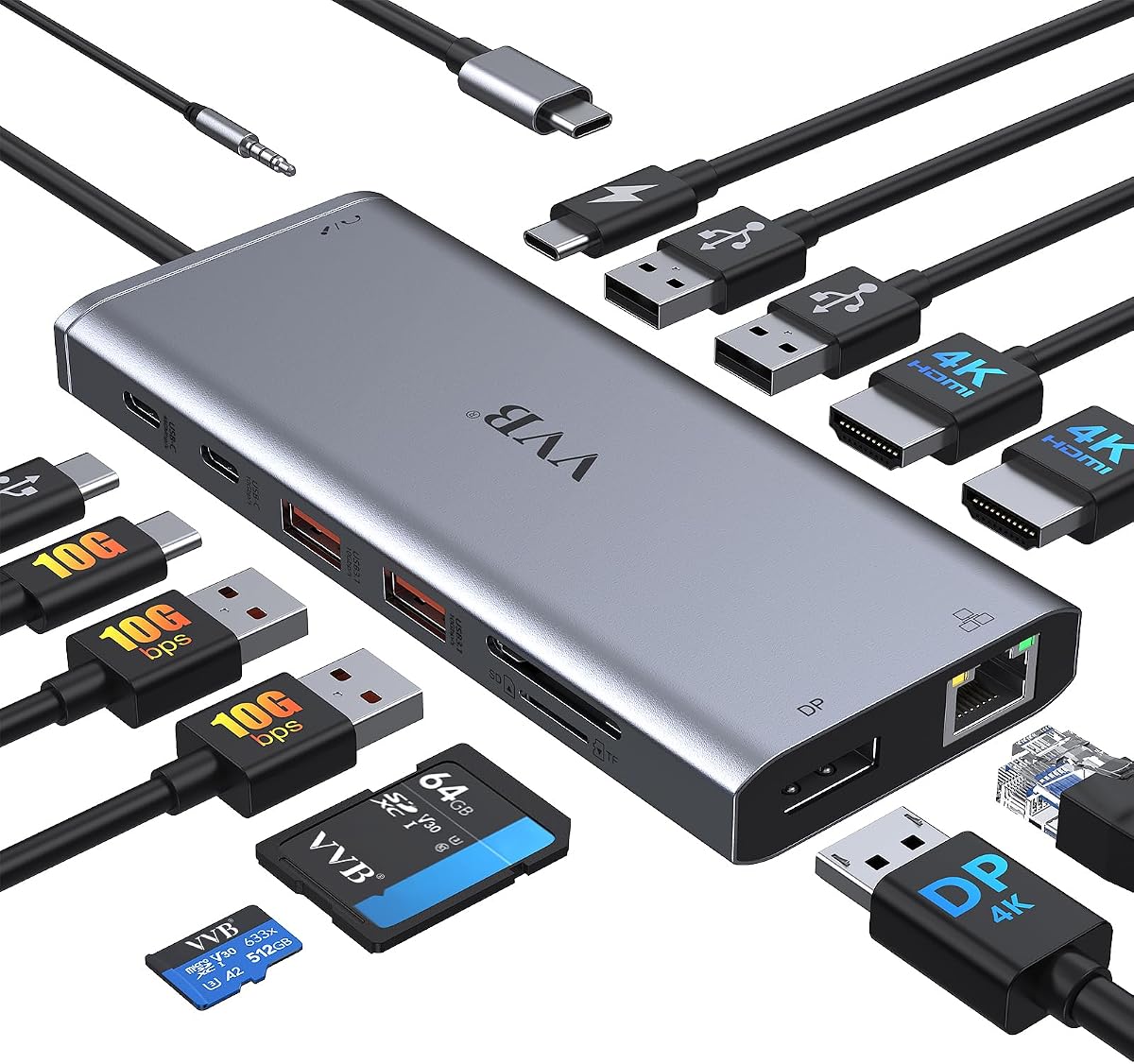
Dual HDMI 4K support
85W power pass-through charging
Includes Ethernet and card reader
Discover the top 10 docking stations for Dell laptops compared for performance, port selection, and reliability in October 2026.
Finding the right docking station for your Dell laptop is essential for creating a productive workspace. A quality hub expands connectivity, supports multiple monitors, and simplifies cable management for seamless daily use.
We compared ten top-rated models based on port variety, power delivery capabilities, video output options, and overall build quality. Our analysis focuses on compatibility with Dell systems and real-world performance metrics.
Each pick highlights specific strengths and ideal use cases to help you choose wisely. Keep in mind that product availability and pricing can change frequently, so verify details before purchasing.
4.5Editor score

4.5Editor score

4.3Editor score
This side-by-side comparison highlights the key specifications and capabilities of each featured docking station to help you identify the best fit for your Dell laptop setup.




The Dell Pro Laptop Docking Station WD25 stands out as the top choice for Dell users seeking robust connectivity. With a 4.5 rating, it offers seamless integration and reliable performance across work environments.
We may earn a commission when you buy through this link, at no additional cost to you.
Its ability to deliver up to 100W of power ensures your laptop stays charged while handling multiple peripherals. The support for up to four high-resolution displays makes it ideal for multitasking professionals.
The ambidextrous cable routing adds flexibility to desk setups, while the sustainable materials align with modern eco-friendly practices. Some users may find it pricier than generic alternatives.
This dock is perfect for enterprise users or those with Dell AI PCs needing maximum connectivity and power. It remains the best overall solution for a streamlined, efficient workspace.
Delivers 100W charging and supports four displays for expanded productivity.
Features durable connectors and recycled materials for long-term eco-friendly use.
We may earn a commission when you buy through this link, at no additional cost to you.
Anker delivers a powerful yet affordable option with this 8-in-1 docking station. Rated 4.5 stars, it balances cost and functionality effectively for budget-conscious Dell laptop users.
We may earn a commission when you buy through this link, at no additional cost to you.
It supports dual 4K displays and offers 85W pass-through charging, which is sufficient for most daily tasks. The inclusion of an Ethernet port ensures stable network connectivity.
While not compatible with Linux and lacking high-speed USB data transfer, its performance on Windows is solid. It is an excellent entry-level solution for home offices.
Buy this if you need dual monitors without breaking the bank. It provides essential ports and reliable performance for casual to moderate productivity needs.
Provides dual HDMI 4K support at a budget-friendly price point.
Includes Ethernet and SD card reader for versatile device connections.
We may earn a commission when you buy through this link, at no additional cost to you.
The Anker Prime Docking Station offers an impressive 14-in-1 layout tailored for power users. With a 4.3 rating, it delivers exceptional versatility and high-speed performance for demanding workflows.
We may earn a commission when you buy through this link, at no additional cost to you.
It provides up to 160W total output, capable of charging four devices simultaneously. The 11 data ports support speeds up to 10Gbps, ensuring fast file transfers.
Dual HDMI ports allow for crisp streaming and multitasking. While pricey, the extensive connectivity justifies the cost for professionals managing multiple peripherals daily.
Choose this premium dock if you need maximum port density and power. It transforms your laptop into a fully functional desktop workstation with ease.
Delivers 160W total output with eleven data ports for extensive connectivity.
Supports 10Gbps speeds for rapid file movement across devices.
We may earn a commission when you buy through this link, at no additional cost to you.
This versatile hub supports triple displays, making it a strong value for multi-monitor setups. It balances cost with useful features for users needing expanded screen real estate.
We may earn a commission when you buy through this link, at no additional cost to you.
With HDMI, DisplayPort, and VGA outputs, you can connect varied legacy and modern monitors. The 100W USB-C input ensures adequate power for most laptops.
However, connecting VGA limits resolution across all displays to 1080P. MacOS users should note that external screens will mirror rather than extend.
Ideal for users needing multiple screens on a budget, this dock delivers essential functionality. Just ensure your laptop supports DP 1.4 for best results.
Supports HDMI, DisplayPort, and VGA for diverse monitor compatibility.
Enables connection of up to three external monitors simultaneously.
We may earn a commission when you buy through this link, at no additional cost to you.
Anker's Nano Docking Station features a unique detachable design combining desktop and travel utility. It is rated 4.2 and offers robust connectivity for flexible work environments.
We may earn a commission when you buy through this link, at no additional cost to you.
You can snap off a 6-in-1 hub for on-the-go use, effectively replacing two devices. Triple display support and 100W charging handle intensive desktop workflows.
While the dock needs a laptop connection to activate ports, this ensures efficient power usage. The included 140W adapter guarantees stable performance under full load.
Pick this if you travel frequently but want a full desktop setup at home. It seamlessly transitions between mobile and stationary work modes.
Combines a full desktop dock with a detachable portable hub.
Delivers 100W charging and 10Gbps data transfer efficiently.
We may earn a commission when you buy through this link, at no additional cost to you.
This hub offers 14 ports for extensive connectivity options. It is a strong candidate for users needing a wide array of interfaces without sacrificing speed.
We may earn a commission when you buy through this link, at no additional cost to you.
Dual 4K support and 10Gbps USB-C ports ensure fast data and video performance. The Gigabit Ethernet provides stable network connections for work environments.
Note that compatibility varies depending on your laptop's USB-C specifications. Ensure your device supports DisplayPort Alternate Mode before purchasing.
This is a great fit for power users needing diverse ports at once. It balances port count with performance effectively for most Windows laptops.
Provides 14 ports including high-speed USB-C and Ethernet.
Supports dual 4K displays and 10Gbps file transfers.
We may earn a commission when you buy through this link, at no additional cost to you.
The WD19S delivers 130W power delivery, making it suitable for high-performance Dell laptops. It is a proven solution designed for enterprise environments and reliability.
We may earn a commission when you buy through this link, at no additional cost to you.
Dual DisplayPort and HDMI outputs allow flexible monitor configurations. It ensures your workstation stays powered while handling multiple tasks.
While newer models offer more ports, this remains a stable choice for older Dell systems. The price reflects its robust build and Dell optimization.
Select this if you have a Dell Precision or Latitude needing proven connectivity. It offers reliable performance with essential ports for professional use.
Provides 130W power with versatile display output options.
Designed specifically to integrate seamlessly with Dell hardware.
We may earn a commission when you buy through this link, at no additional cost to you.
This 13-in-1 hub supports triple displays on Windows, expanding workspace significantly. It is ideal for professionals needing multiple screens without complex setups.
We may earn a commission when you buy through this link, at no additional cost to you.
It includes 85W host charging and a 135W adapter for stable performance. Data transfer speeds reach 10Gbps via USB-C, ensuring quick file access.
MacOS users should note that only mirrored mode works on external displays. This restriction makes it more suitable for Windows-based workflows.
Choose this dock if you need three monitors and reliable charging. It delivers solid performance for multitasking and desktop productivity.
Supports three external monitors for expanded multitasking.
Offers 85W charging and 10Gbps data transfer speeds.
We may earn a commission when you buy through this link, at no additional cost to you.
The WD19 offers reliable connectivity with DisplayPort 1.4 and HDMI 2.0B outputs. It is a classic choice for Dell users prioritizing proven compatibility.
We may earn a commission when you buy through this link, at no additional cost to you.
It delivers 90W charging and includes a Gigabit Ethernet port for stable network access. The layout provides essential ports for standard productivity tasks.
While it lacks the newest USB standards, it remains effective for legacy Dell systems. It is a solid pick if you value simplicity and reliability.
This dock fits users with existing Dell setups needing straightforward expansion. It balances essential features with reliable performance.
Supports Dual DisplayPort 1.4 and HDMI 2.0B.
Offers 90W charging and stable Gigabit Ethernet.
We may earn a commission when you buy through this link, at no additional cost to you.
This renewed model provides a cost-effective way to access Dell's WD19 features. It includes an 180W adapter and cables for complete plug-and-play setup.
We may earn a commission when you buy through this link, at no additional cost to you.
Supporting dual monitors and multiple USB ports, it offers essential connectivity. The refreshed option makes it accessible without compromising core utility.
Cosmetic condition may vary with renewed products, so inspect upon arrival. Ensure your laptop is USB-C or Thunderbolt compatible before buying.
Ideal for budget-conscious buyers needing reliable Dell connectivity, this dock delivers. It is a practical solution for home or office workstations.
Comes with 180W adapter and cables for full setup.
Offers core WD19 features at a renewed value price.
We may earn a commission when you buy through this link, at no additional cost to you.
Selecting the right docking station requires understanding your specific connectivity and power needs. This guide outlines the key factors to consider for an optimal purchase.
Evaluate the number and types of ports you need daily. Look for HDMI, DisplayPort, USB-A, USB-C, and Ethernet to connect monitors, storage, and network.
Ensure the dock has enough ports to eliminate dongles and simplify your desk setup.
Check that the dock supports sufficient wattage to charge your laptop while in use. Most modern Dell laptops require at least 65W to 100W for optimal performance.
Higher power delivery ensures your device stays powered during intensive multitasking or video streaming.
Determine how many external monitors you need and their resolution requirements. Support for 4K at 60Hz is critical for high-quality displays.
Verify compatibility with display standards like DisplayPort 1.4 for extended dual or triple monitor setups.
Ensure the dock supports your operating system for full functionality. Some hubs restrict features like extended displays on macOS.
Windows and ChromeOS generally have broader support for multi-monitor configurations via MST.
Choose docks constructed from durable materials to withstand daily use. Metal enclosures often dissipate heat better than plastic.
Look for robust connectors that are rated for repeated plugging and unplugging without wear.
Opt for established brands with reliable customer support and warranty coverage. A solid warranty protects against defects and ensures long-term use.
Read user reviews to gauge real-world reliability and service responsiveness.
Consider the physical size and orientation of the dock to fit your workspace. Compact designs save desk space while maintaining full functionality.
Cable management features like ambidextrous routing improve aesthetics and convenience.
Check USB and card reader speeds if you transfer large files regularly. USB 3.2 or Thunderbolt 3 and 4 ports offer faster throughput.
Fast data speeds reduce wait times when accessing external drives or SD cards.
Begin by connecting the power adapter to the dock and plugging it into a wall outlet. This ensures the dock has enough energy to charge your laptop and run peripherals.
Use a high-quality USB-C cable to connect the dock to your laptop's compatible port. Secure the connection and ensure the port supports DisplayPort Alternate Mode for video.
Plug in your peripherals like monitors, keyboard, and mouse to the dock's ports. Turn on your laptop and monitor to verify all devices are recognized.
Regularly clean the ports with a soft brush to prevent dust buildup. Avoid bending the cables excessively to maintain long-term durability.
Not all docks work with every Dell laptop. Ensure your laptop has a USB-C port that supports DisplayPort Alternate Mode and Power Delivery. Check the specific compatibility list provided by the manufacturer.
Most modern docking stations support Power Delivery to charge your laptop. Verify the wattage output matches your laptop's requirements to ensure it charges properly under load.
This may occur if your laptop port does not support video output. Ensure DisplayPort Alternate Mode is enabled and update your laptop's firmware and drivers.
Yes, many docks support dual or triple monitors. Check the dock's specifications for maximum display resolution and count to match your needs.
USB 3.0 ports are sufficient for most peripherals like keyboards and mice. For external storage or card readers, USB 3.2 or higher is recommended.
Most laptops with 13-inch to 15-inch screens require around 65W to 100W. Larger or high-performance laptops may need higher wattage for optimal charging speed.
Most docks are plug-and-play on Windows. Some enterprise features may require specific drivers, but basic connectivity should work immediately.
We highlighted top picks like the Dell Pro WD25 for performance and Anker models for value. Each option offers unique benefits depending on your budget and workflow.
Prioritize power delivery and display support to match your daily tasks. A well-chosen dock can transform your portable laptop into a full desktop workstation.
Remember to check current availability and compatibility details before buying. Your ideal setup depends on balancing essential features with practical usability.