
TobenONE DisplayLink Docking Station 3 Monitors
4.4Editor score
18 powerful ports total
120W power adapter
Triple quad 4K support
This guide compares the top docking stations with quad monitor support for professionals needing multiple displays, featuring detailed reviews and expert
Finding a docking station with quad monitor support is essential for modern professionals who rely on multiple screens to boost productivity and streamline complex workflows efficiently.
We evaluated ten top-rated models based on display capabilities, port variety, power delivery, and compatibility with various operating systems to help you choose the right solution.
Each review highlights key features and real-world performance, but remember that prices and availability can change quickly, so verify current details before making your final purchase decision.
4.4Editor score

4.7Editor score
4.6Editor score
The following table provides a side-by-side comparison of all ten models reviewed in this guide, highlighting their key specifications to help you quickly identify the best fit.

The StarTech Thunderbolt 5 Universal Docking Station stands out as the Editor's Choice for professionals needing robust multi-monitor setups. It supports quad 4K displays and offers driverless plug-and-play performance across macOS and Windows.
We may earn a commission when you buy through this link, at no additional cost to you.
Its ability to unlock full display potential of Apple Silicon makes it ideal for MacBook Pro users. The dock supports dual 6K on M3 Pro/Max and up to triple 4K 120Hz on M5 Pro models.
While the price is higher than many alternatives, the reliability and security features justify the cost. Integrated K-slot and Nano lock slots help secure your fleet in high-traffic workspaces effectively.
This dock is perfect for IT professionals and creative workflows demanding high performance. The rigorous testing and lifetime support ensure consistent behavior in shared environments.
This dock supports dual 6K on MacBook Pro/Max models, providing stunning clarity for creative professionals who need precise color accuracy and detail.
Install quickly without OS-specific workarounds, reducing help desk tickets and ensuring consistent behavior in shared or hot-desking environments.
We may earn a commission when you buy through this link, at no additional cost to you.
The TobenONE 18-in-1 DisplayLink Docking Station is our Best Budget pick for users seeking quad monitor support without breaking the bank. It offers 18 powerful ports including four HDMI connectors for extensive connectivity.
We may earn a commission when you buy through this link, at no additional cost to you.
With a powerful 120W power adapter, you can charge your laptop up to 100W while connecting multiple peripherals. The dock supports up to four external displays on Windows laptops in stunning 4K resolution.
The main trade-off is the requirement to install the DisplayLink driver, which adds a step to setup. Additionally, macOS users are limited to three displays with HDMI 3 and 4 being mutually exclusive.
This dock is ideal for home office setups or professional workflows where budget is a concern. The robust port selection ensures you can connect all your essential devices seamlessly.
Boost your productivity with 18 powerful ports including four HDMI, multiple USB types, and SD card slots for comprehensive device connectivity.
The 120W adapter provides up to 100W charging for your laptop, allowing you to leave your original charger at home for added convenience.
We may earn a commission when you buy through this link, at no additional cost to you.
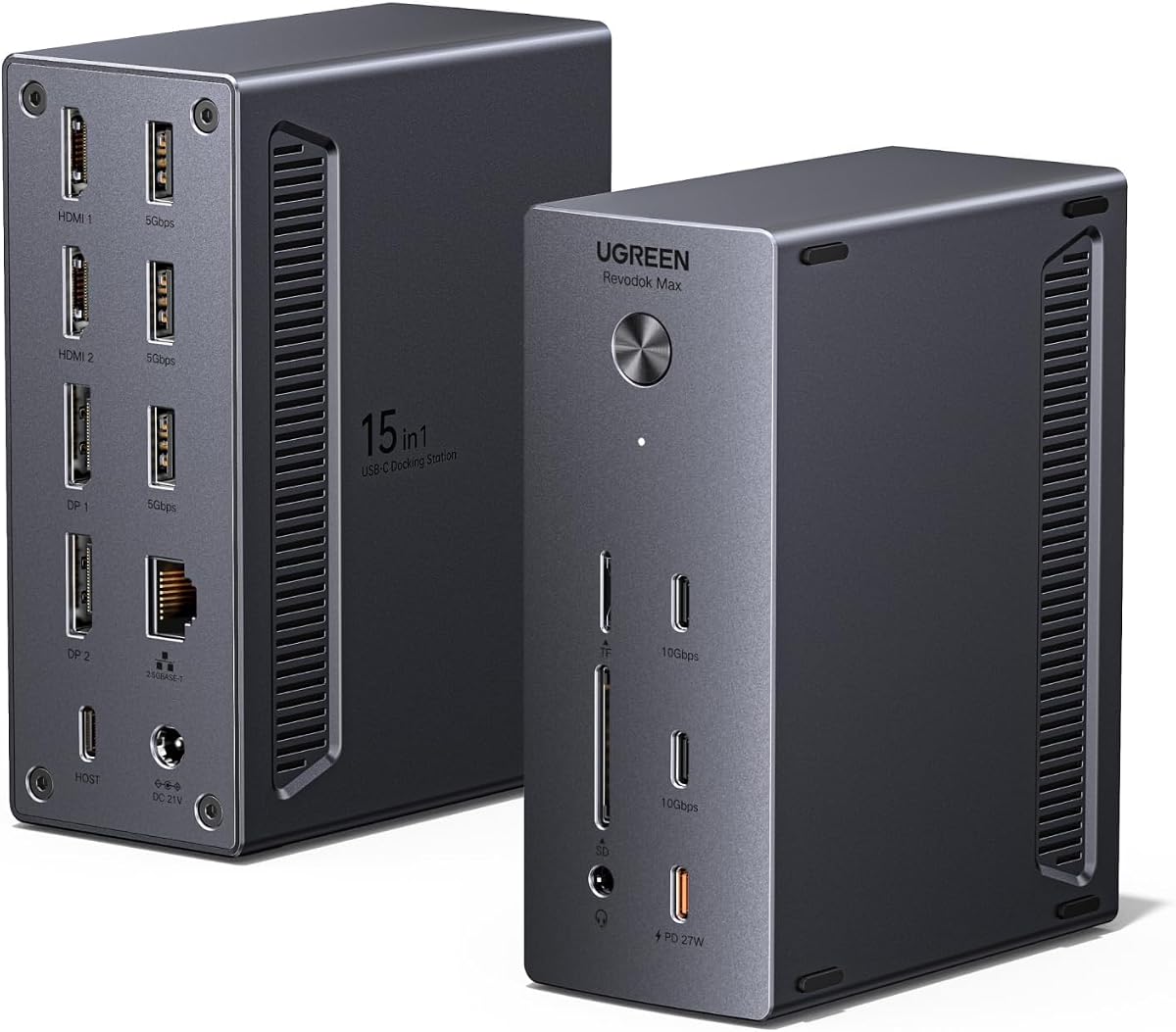
The UGREEN USB-C DisplayLink Docking Station is a premium option offering quad 4K support at 60Hz from a single USB-C connection. It features a 15-in-1 desktop expansion design suitable for demanding workstations.
We may earn a commission when you buy through this link, at no additional cost to you.
It includes a 150W power adapter that can charge your laptop up to 100W and a phone or tablet up to 27W simultaneously. The 2.5G ethernet port provides fast, stable wired networking for your office.
One consideration is that driver installation is required for full functionality. Additionally, the charging shares power dynamically, which may limit host charging when using the PD-Out port heavily.
This dock is recommended for users needing high-speed data transfer and reliable networking. The included USB flash drive with drivers simplifies installation for both Mac and Windows users.
Build a multi-monitor workstation from one USB-C connection supporting up to four 4K displays for enhanced productivity and visual clarity.
Transfer large files through USB-C 10Gbps ports and enjoy fast 2.5GbE networking for seamless workflow and reliable internet access.
We may earn a commission when you buy through this link, at no additional cost to you.
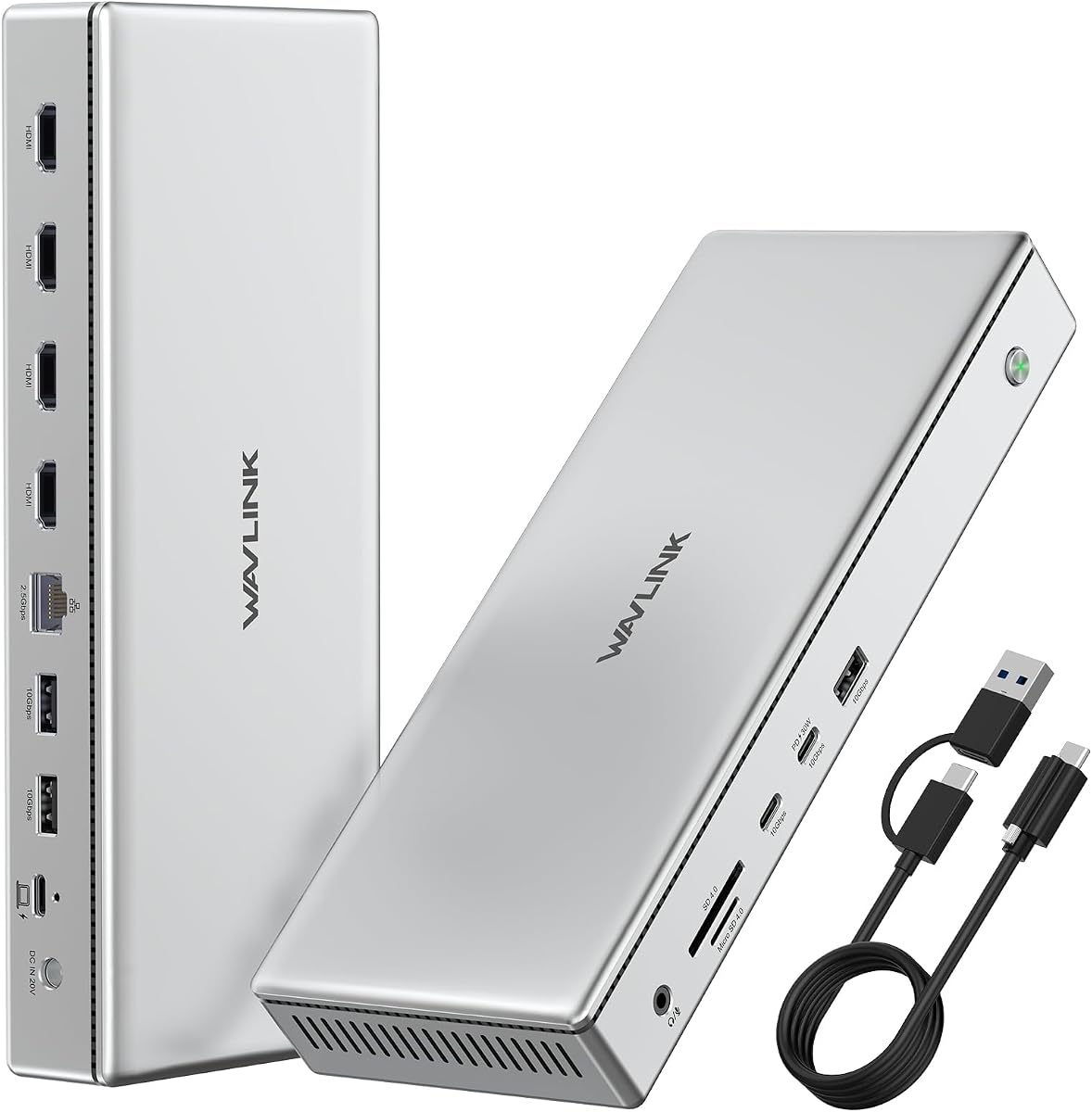
The WAVLINK Pro Docking Station offers quadruple 4K HDMI displays via DisplayLink technology, effectively breaking Mac's native display limits. It features an all-in-one 15-port expansion design for maximum productivity.
We may earn a commission when you buy through this link, at no additional cost to you.
Included is a 160W power adapter that can charge your laptop up to 100W and mobile devices up to 30W simultaneously. The dock supports blazing 10Gbps speeds for USB-C and USB-A ports.
The aluminum build ensures heat dissipation and style, though it does require the DisplayLink driver for operation. Users should note specific compatibility details regarding macOS display limits.
This dock is ideal for video editors and designers who need multiple high-resolution screens. The comprehensive port selection supports various peripherals and storage devices effectively.
Break Mac's display limit with 4x 4K@60Hz HDMI outputs via DisplayLink for ideal multitasking trading or coding setups.
Enjoy blazing 10Gbps speed for USB-C and USB-A ports with perfect for video editors and creators needing quick data access.
We may earn a commission when you buy through this link, at no additional cost to you.
The TobenONE DisplayLink Docking Station features 18 powerful ports enabling triple or quad monitor setups via a single USB-C connection. It includes a 120W power adapter for laptop and dock charging.
We may earn a commission when you buy through this link, at no additional cost to you.
On Windows systems, it supports up to four 4K monitors, while macOS supports three. The dock offers fast data transfer speeds up to 10Gbps and includes gigabit ethernet connectivity.
Users should be aware that Linux or Unix systems are not supported. The manufacturer offers expert lifetime support to resolve issues quickly and keep productivity running efficiently.
This dock is trusted for financial analysis and live streaming needs. The inclusion of USB-C and USB-A ports allows connecting multiple devices seamlessly.
Simply plug in a single cable to simultaneously extend three or four different displays and connect various peripherals easily.
Reduce charging time with a 120W power adapter that charges your laptop up to 100W via the included power supply.
We may earn a commission when you buy through this link, at no additional cost to you.
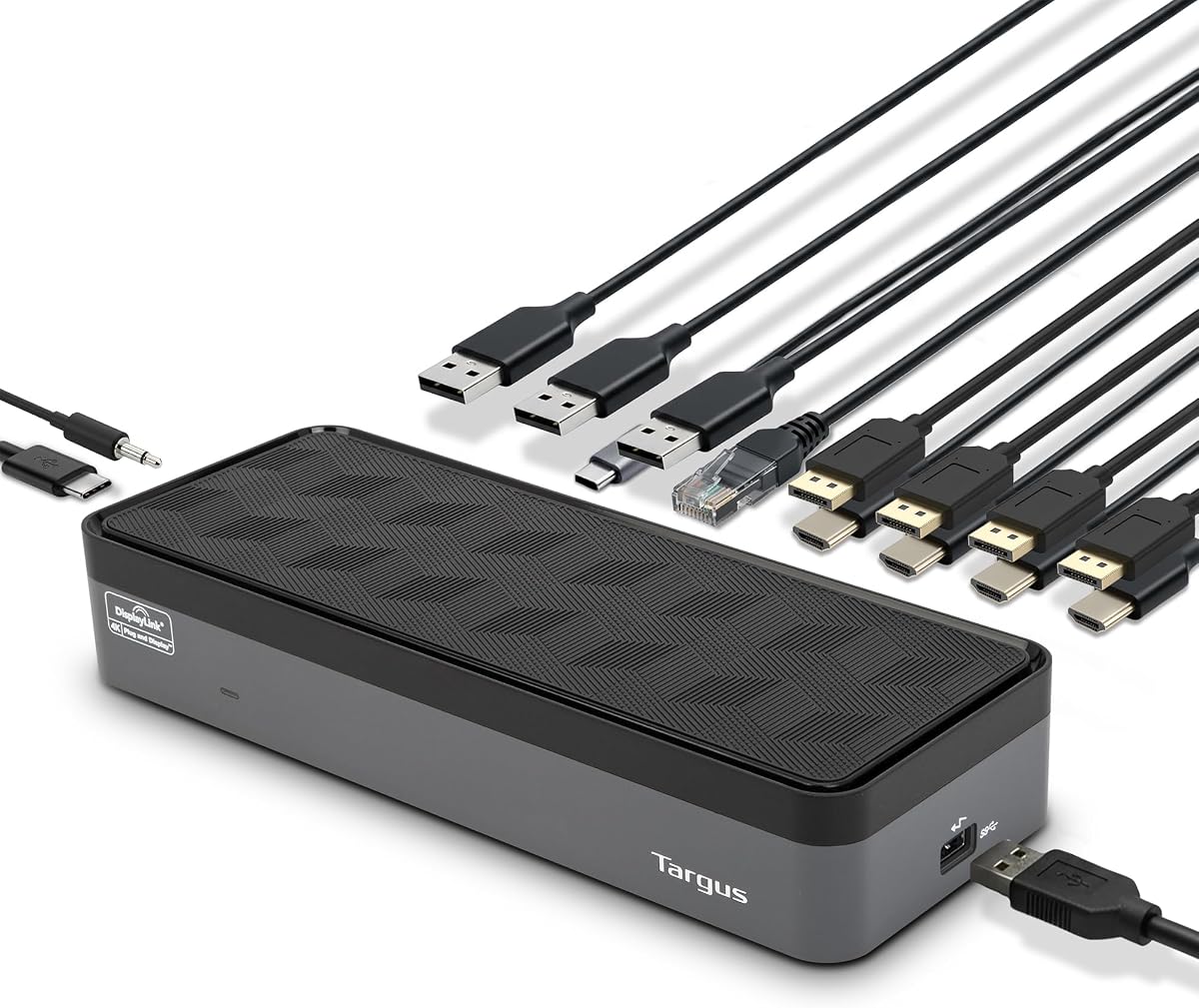
The Targus USB-C Universal Quad 4K Docking Station expands your workstation with support for single 5K or four 4K displays. It includes power tips for legacy hosts and a USB-C to USB-A adapter.
We may earn a commission when you buy through this link, at no additional cost to you.
With 100W Power Delivery, it charges laptops efficiently while connecting up to five USB ports. The dock also includes a Gigabit Ethernet port and combo Audio In/Out for versatile connectivity.
It features an integrated lock slot to safeguard equipment though locks are sold separately. This dock is compatible with major brands and VESA mounting brackets available for purchase.
Ideal for offices needing versatile USB connectivity, this dock supports Alt Mode hosts including Thunderbolt 3. The included charging tips simplify setup across different laptop brands.
Supports single 5K and four 4K UHD displays via HDMI or DisplayPort for crisp and clear monitor visuals.
Connect all your peripherals with 1 USB-C and 4 USB-A ports including one fast charging port for convenience.
We may earn a commission when you buy through this link, at no additional cost to you.
Product 1 is listed in our roundup but detailed specifications are currently unavailable. You should visit the product page to review its features and compatibility requirements carefully before purchasing.
We may earn a commission when you buy through this link, at no additional cost to you.
Because specific data is missing, verifying that it supports quad monitor output is critical. Ensure it meets your specific needs for resolution and connection types.
We recommend reaching out to the seller or manufacturer for clarification on supported operating systems and display limits. This step ensures you avoid compatibility issues.
Until more information is available, consider other options in this guide with confirmed specs. Always check recent reviews for up-to-date performance feedback.
Ensure the dock matches your laptop's ports and supports your operating system for proper functionality.
Review the product details thoroughly to confirm it meets your multi-monitor requirements before buying.
We may earn a commission when you buy through this link, at no additional cost to you.
Product 2 is included in our selection but lacks detailed public information. Visit its listing to verify if it supports quad monitor setups and meets your performance needs.
We may earn a commission when you buy through this link, at no additional cost to you.
Without confirmed specs, check for supported resolutions and port types. Confirm it works with your specific laptop model and operating system version.
Contacting the seller can provide clarity on driver requirements and connection limits. This diligence helps prevent returns and ensures smooth operation.
Consider comparing with fully documented models in this guide to make an informed choice. Verified products often provide more reliable performance for professional use.
Review the full product listing to confirm display support and port availability before purchasing.
Reach out to the seller for clarification on compatibility and performance details.
We may earn a commission when you buy through this link, at no additional cost to you.
Product 3 appears in our list but detailed specs are not currently available. Ensure you verify its quad monitor capabilities and compatibility with your devices.
We may earn a commission when you buy through this link, at no additional cost to you.
Check the product page for supported display resolutions and ports. Confirm whether it requires a specific driver or connection method for operation.
Contact the manufacturer if you need specific technical details before buying. This ensures you avoid unexpected limitations in your workstation setup.
Prioritize models with transparent specifications to guarantee performance. Fully documented options reduce the risk of compatibility issues.
Ensure the dock works with your laptop's ports and operating system to avoid issues.
Review all technical details on the product page to confirm it meets your requirements.
We may earn a commission when you buy through this link, at no additional cost to you.
Product 4 is included in our comparison but lacks specific public data. Visit the product page to verify its ability to support quad monitors and other essential features.
We may earn a commission when you buy through this link, at no additional cost to you.
Without full specs, check for HDMI and DisplayPort availability. Ensure it provides sufficient power delivery for your laptop and peripherals.
Reach out to the seller for clarification on supported operating systems and display limits. This step helps ensure compatibility before purchase.
Consider fully documented alternatives in this guide for reliable performance. Transparent specifications help you make a confident purchasing decision.
Review the product listing to confirm display support and connection options.
Ask the seller for clarification on technical details and compatibility before buying.
We may earn a commission when you buy through this link, at no additional cost to you.
Selecting the right quad monitor docking station requires attention to display capabilities, connection types, and power delivery to ensure smooth performance.
Ensure the dock supports four 4K displays at 60Hz or higher for sharp visuals and smooth performance. Check whether it allows mixed resolutions or requires uniform settings across all monitors.
Prioritize docks that support the resolution and refresh rates your workflow demands.
Look for USB-C or Thunderbolt connectivity depending on your laptop's host port. A good dock includes HDMI and DisplayPort options to match your monitors easily.
Choose a model with enough USB-A and USB-C ports for your peripherals.
Select a dock that provides at least 60W to 100W power delivery to charge your laptop while connected. Higher wattage ensures stable operation under heavy load.
Confirm the power adapter supports your laptop's charging requirements efficiently.
Mac users should note that native display limits may require DisplayLink drivers for quad setups. Windows generally supports more monitors via USB-C without drivers.
Verify driver requirements and OS compatibility before purchasing.
A Gigabit Ethernet or 2.5G port provides stable wired internet connections. This is crucial for office environments requiring reliable network performance.
Prioritize docks with robust ethernet options for seamless connectivity.
Some docks require DisplayLink software to enable multiple screens on specific OS types. Ensure you are comfortable installing drivers on your computer.
Opt for driverless solutions if you prefer plug-and-play setup.
Aluminum or durable builds help with heat dissipation during extended use. Check user reviews for thermal performance under multi-monitor workloads.
Choose a dock with good ventilation to maintain longevity.
Integrated K-slot or Nano lock slots secure your dock in shared spaces. This protects your equipment from unauthorized removal.
Prioritize security features if you work in public or office settings.
Connect the dock to your laptop using a high-quality USB-C or Thunderbolt cable that supports video output. Ensure the cable is rated for the data speed required by your setup.
Install any necessary drivers such as DisplayLink before connecting monitors. Restart your computer after driver installation to ensure proper detection of all displays.
Keep the dock in a well-ventilated area to prevent overheating during extended use. Avoid blocking vents and clean dust regularly with a soft brush to maintain performance.
No, not all laptops support quad monitors via docking. You need a host with sufficient bandwidth like Thunderbolt or USB-C with DisplayLink. Mac users should check display limits carefully.
Yes, many docks require DisplayLink drivers to support four monitors on macOS or some Windows setups. Without it, you might be limited to two displays.
Most laptops require 60W to 100W charging. Choose a dock that provides at least this wattage to charge your device while it is docked.
Yes, many docks support mixed resolutions but performance may vary. Ensure your dock explicitly lists support for your desired resolution combinations.
Yes, most docks allow combining HDMI and DisplayPort. Check the dock specifications to confirm mixed output capabilities.
A dock should not significantly slow down performance. Driverless models minimize CPU usage while DisplayLink may use system resources depending on the setup.
We reviewed ten top docking stations offering quad monitor support including top picks like StarTech, TobenONE, and UGREEN. Each option provides unique features to match different professional needs.
Prioritize display support, power delivery, and OS compatibility when making your choice. Ensure the dock meets your specific resolution requirements before purchasing.
Prices and availability can change quickly so verify current details on the product page. Always check recent customer reviews for the latest feedback before buying.